
Getting started
Progressive Web Office is a Progressive Web App (PWA): a web page that can be installed and works offline. Everything happens in your browser — files are never sent to a server.
Opening the app
The app is published at progressive-web-office.github.io (the Open the app link at the top of this documentation); its start screen links back here.
To host your own copy, serve the built application (just build then deploy the dist/ folder to any static web server) or run it locally with just dev and open the printed URL.
Installing
In Chromium-based browsers, use the Install icon in the address bar (or Add to Home screen on mobile). In Safari, use Share → Add to Dock / Home Screen. Once installed, the app starts without a network connection.
Where the browser supports the File Handling API, the installed app registers itself for the supported file types, so you can open a file with Open with → Progressive Web Office from your operating system.
Start screen
The start screen offers:
- New document, New spreadsheet, New presentation
- Open file… — or drop a file anywhere in the window. Drop several files (PDF, Word, OpenDocument…) or a whole folder at once and they open in the folder panel, the first document shown: no need to zip them first.
- the list of recent files (stored only in your browser)
Languages
The interface is available in English, French (Français) and Simplified Chinese (简体中文). The language is chosen from your browser preferences on the first visit; change it with the 🌐 language selector on the start screen — the choice is remembered in this browser.
Light and dark theme
The theme button in the toolbar cycles between ◐ System (default: follows the light or dark setting of your device), ☀ Light and ☾ Dark. The choice is remembered on this device. Slides keep their own background in every theme.
The paper of documents — View › Paper of documents in a text document, or Settings › General — is As the theme (default: white paper with a light theme, dark paper with a dark theme), Light (dark text on white) or Dark (light text on black, for reading at night). On dark paper the text keeps its colours turned towards light ones (red stays red, a highlight stays yellow) and the pictures, drawings and diagrams keep their own colours. Only the screen changes: printing, the PDF and the saved files keep the colours of the document.
Recent files and recovered drafts
A document saved in the browser (Save ▸ In the browser, or in the folder Browser storage) appears in Recent files marked 🗄️ Browser storage: it reopens from there, as it is now, not as an old copy. The card 🗄️ In this browser of the start screen lists all of them.
To open one quickly, Go to file… (Ctrl+Shift+O, or from the command palette Ctrl+Shift+P) lists the documents kept in the browser — and those of the folder open — the latest first, each under its folders (the first and the last ones always shown, the middle cut when the path is long): type part of the name or of the folder, then Enter.
Files you open are added to Recent files on the start screen (up to 12, files under 100 MB), with their format, size and the date and time they were last opened. The copies are stored only in this browser (IndexedDB); × removes an entry and deletes its stored copy, Clear recent files removes them all.
While a document has unsaved changes, a draft is saved in the browser every 30 seconds. If the tab is closed or crashes, the start screen offers to restore it. Saving or closing the document discards the draft.
Saving
Files, browser, sharing, collaboration, Git, cloud, synchronisation, backups…
Where are my documents? compares them all, and tells which to choose.
- Save (Ctrl+S) writes the file in its current format.
- Save as… converts to another format of the same family (for example
.docx→.odt,.xlsx→.ods,.pptx→.odp).
When the browser supports the File System Access API you choose where to save; otherwise the file is downloaded.
A dot (●) next to the file name indicates unsaved changes; the browser warns you before closing the tab in that case.
Renaming the file
Click the file name at the top of the window to rename it. Only the name is edited: the extension is shown beside it and kept (typing it again does not double it). Enter (or a click elsewhere) renames, Esc cancels.
- A file of the open folder or archive is renamed there; the folder panel, and the links of other notes to it, follow.
- Another file takes the new name the next time it is saved; the recent files list it under its new name.
- Its versions follow it.
- A file of a Git repository, Grist or a Nextcloud / WebDAV server keeps the name it has there.
Versions
Each time you save a document (to a file, a folder, Nextcloud or a Git repository), the app keeps a copy of it in this browser: 🕘 History lists them, newest first (the last 30 per document, an unchanged save adds none). There you can:
- Keep the current state as a version, with an optional name ("Sent to the class");
- Compare with now: what changed since that version — lines added, removed or changed, the words struck through or underlined (see Comparing versions);
- Open an older version: it replaces the content of the document, which stays where it is, so saving makes it the current one;
- ⬇ Download a version as a file, or ✕ delete it.
Versions stay in this browser only: clearing the site's data erases them.
Keyboard shortcuts
| Shortcut | Action |
|---|---|
| Ctrl+O | Open a file |
| Ctrl+S | Save |
Documentation, source code and About
The start screen shows three buttons under the title: 📖 Documentation (this site), ⌨️ Source code and ℹ️ About. In the toolbar, ? opens the documentation and ℹ the About window.
About shows the version and the git commit of the build, whether the app is installed and works offline, and links to this documentation, the source code, the changelog and the problem tracker. Its QR code opens the app on another device: scan it with a phone camera. Click it to show it full screen, which is easier to scan from a distance or on a projector. Open-source components lists the libraries the app is built with, with their exact versions, licences and project pages. When reporting a problem, Copy details copies the version, the browser information and the component versions to paste into the report.
Limits
Files larger than 200 MB (ZIP archives: 1 GB, read one file at a time) are refused to keep the browser responsive.
On a phone
On a narrow screen the header keeps one line: the document name, Save and ⋯, which holds the other actions (open, save as, share, collaborate, print, close…). Editing toolbars are a single row: swipe it sideways to reach the other buttons, so that the document stays visible above the keyboard.
Read-only
🔓 in the header (in ⋯ on a phone) shows the open document read-only: toolbars disappear and nothing can be changed by accident; a banner reminds it. Edit allows changes again; Edit a copy turns it into an untitled copy, saved as a new file. Save does not write a read-only document (Save as keeps a copy).
Documents from a place that cannot be written, such as a folder opened read-only by the browser, always open read-only: only Edit a copy is offered.
Command palette
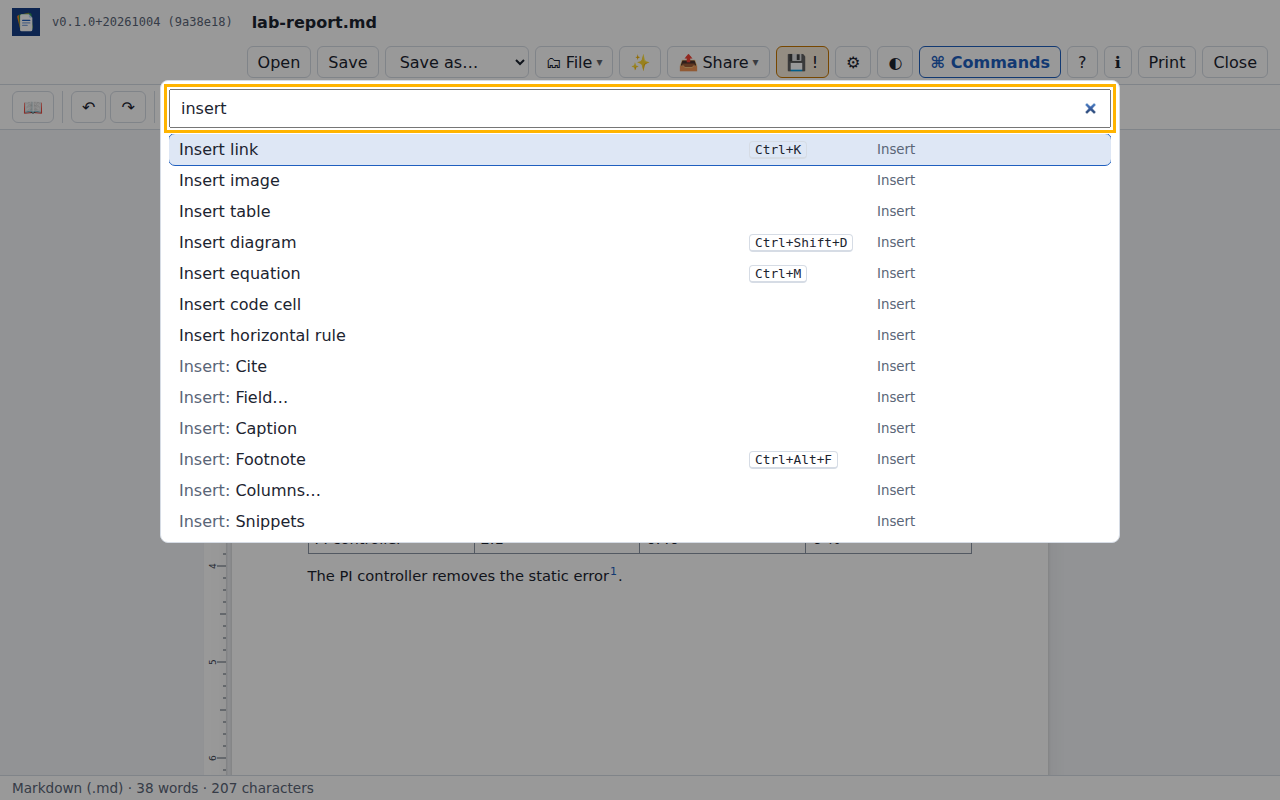
Press Ctrl+Shift+P, click ⌘ Commands in the header, or — on a phone — the round ⌘ button at the bottom right of the screen. The palette holds every action of the screen: the buttons of the toolbars and panels, those folded in their menus (Insert, Format, Share, Review…), the Save as formats, and what the document's context menu offers (fields, springs, the rows and columns of the table the cursor is in).
- With nothing typed, it lists them all by category: browse it to see what can be done.
- Type part of an action's name or of its category, in any order: table, insert image, share, docx, solution… Each is shown as Category: Action — Share: Sync by QR, Insert: Table.
While a document is open, Home goes back to the start screen (the document is closed, after asking if it has changes).
↑ ↓ choose one, Enter runs it, Esc closes the palette; on a phone it takes the whole screen. The keyboard shortcut of a command, when it has one, is shown beside it: next time, use it directly.