Syncing my devices
The documents kept in the browser (Open a folder › Browser storage) can be found on your other devices — a laptop, a phone, a tablet — copied directly between them while the application is open on both, without any account or server of ours.
Before you start
The window shows these warnings first, and asks you to acknowledge them:
- Synchronisation is not a backup. A document spoilt on one device is spoilt on all of them. Keep backups too (💾).
- A deletion reaches every device. A document deleted on one device is deleted on the others — it is kept in the trash of each device (
Documents/.pwo-trash/<date>/) for 30 days, then removed. A version replaced by a newer one goes there too. - It is for one person's own devices, not for working with others: use real-time collaboration for that.
Pairing
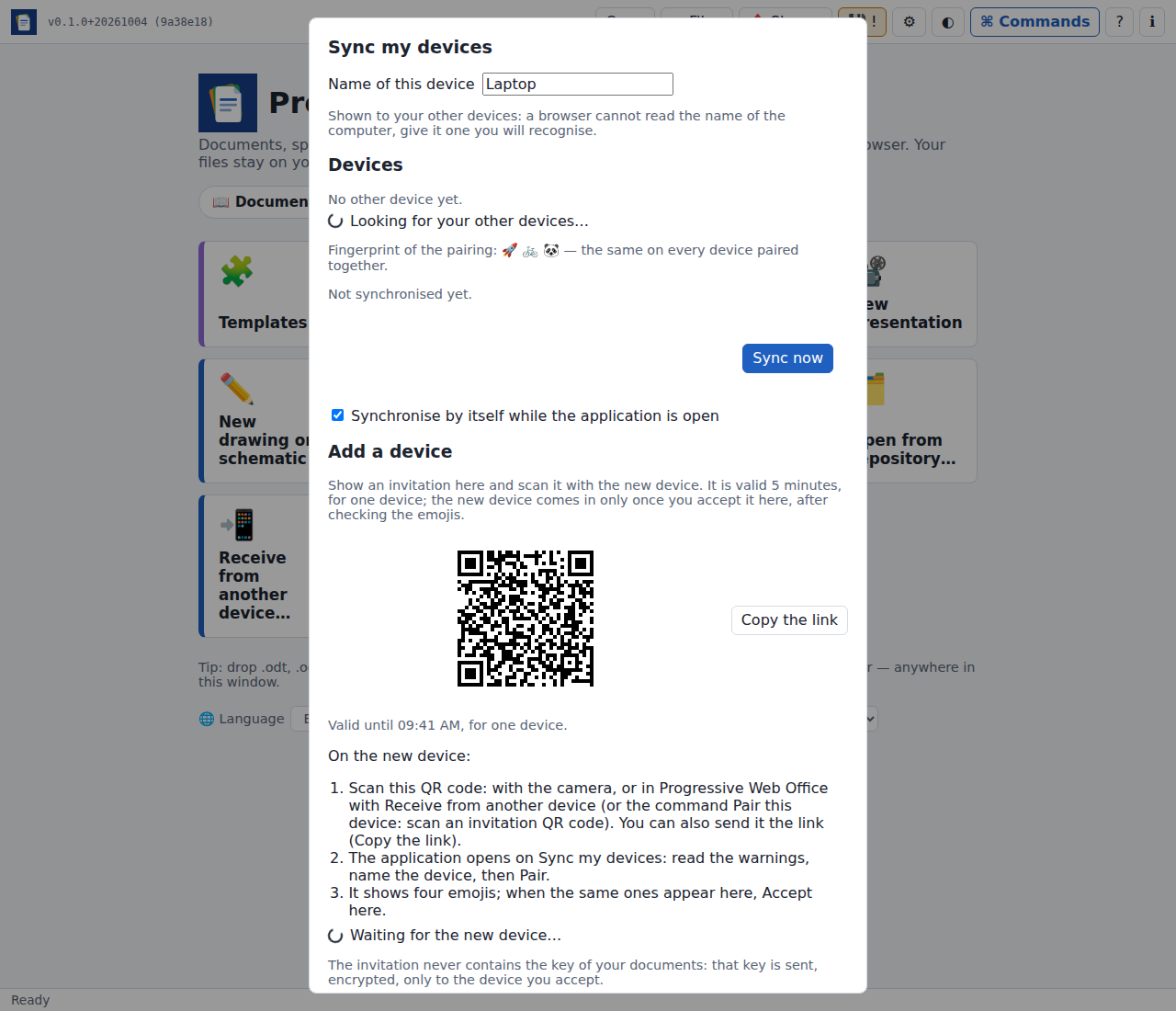
- On the first device: 🔁 Sync (its own button at the top, with a green dot while another device is online; or the command palette), name the device, then Create a pairing. This makes the key of your documents, which stays on your devices.
- To add another device, on a device already paired: Add a device › Show an invitation QR code (or, in the command palette, Add a device: show an invitation QR code). The invitation is valid 5 minutes, for one device; the window says, under the QR code, what to do on the new device.
- On the new device, scan the QR code — with Scan the invitation QR code… (the scanner of QRShare), the camera of the phone, or any QR reader: it is a link to the application, which opens ready to pair. You can also copy the link (Copy the link) and paste it in Invitation link. Read and acknowledge the warnings, check the name of the device (the other device shows it), then Pair: the new device shows four emojis.
- The paired device shows “… asks to join” with four emojis. Accept only if they are the same as on the new device. Only then does it send the key, encrypted, to the new device, which starts synchronising.
The command palette (⌘ Commands, Ctrl+Shift+P) also has Sync my devices now and Pair this device: scan an invitation QR code.
The name of a device is yours to choose — changed in the window, it is told at once to your devices online, and to the others when they next meet: a web page cannot read the name of the computer. On a phone, the browser may tell its model (Pixel 7 · Chrome), used as a first name; elsewhere it is the system and the browser (Windows · Chrome).
A device already paired that opens an invitation asks first: Join this invitation stops its current pairing (its documents stay) and joins the devices of the invitation; Keep the current pairing ignores it.
Synchronising
Only the documents kept in the browser are synchronised — Open a folder › Browser storage, its Documents folder — and your templates (Save as › Template): they go along as files of the folder Templates, and a template saved, changed or deleted on one device is on the others after the next synchronisation. The window says how many documents, and 📁 Open these documents opens them. The recent files of a device are files of its own disk (or of a cloud, a repository): they stay there — copying them to the other devices would make copies that change apart from the file. A document saved in the browser is in the recent files of each device where it was opened, and in 🗄️ In this browser on all of them. To find a document on your other devices, save it in the browser storage:
- once a device is paired, Save asks where: In the browser — synchronised with my devices, or A file on this device. Saved in the browser, the document goes to Browser storage › Documents, which opens as the folder: the next saves go there too;
- ➕ Add recent documents… in the window copies documents of the recent list there — a document saved as a file before pairing, for instance.
Sync now merges this device with the paired devices online; with Synchronise by itself while the application is open, it happens when a device arrives and every few minutes. The window lists the devices, online or last seen, and the last synchronisation.
How the documents are merged:
- a document new or changed on one device is copied to the other;
- a document changed on both since the last synchronisation is kept twice: the newest under its name, the other as
report (conflict Laptop 2026-10-03 21.05).md— the same on every device; - a document deleted on one device and unchanged on the other goes to the other's trash; changed there since, it is kept (and comes back).
Hidden files and the trash are never synchronised.
Devices need not all be on at once. The laptop meets the phone, later the phone meets the tablet while the laptop is off: the phone passes on what it got from the laptop — new documents, changes, deletions — and back. The tablet lists the laptop too, last seen …, according to Phone, until it meets it itself. Each device remembers what it last agreed with each other device, so that a change or a deletion made on one device travels the whole chain, whichever device starts the synchronisation, and a document is never brought back once deleted — unless it was changed, or put back from the trash, since.
Documents and history
🗄️ In this browser on the start screen (or Documents and history in the sync window, or Documents of this browser in the command palette) lists the documents of this browser and, for each, where it stands:
| ✅ | the same on every device met |
| ⬆️ | here, but not yet on a device, or different there (changed since) |
| ⬇️ | on another device, not here yet — synchronise to get it |
It says when each device was last met: what it shows is as of then. Below, the history of the synchronisations, newest first, with their date and time, the device met and what came of it (received, to the trash, conflict copies, failed); Details lists the documents. 🔁 Sync now, 🗑 Trash (n) and Open as a folder are at the top.
The trash
🗑 Open the trash in the window lists what each synchronisation put in the trash of this device, by day: documents deleted on another device, and versions replaced by a newer one.
- ↩ Restore puts a document back where it was (as
name (2).mdwhen the name is taken again). The other devices get it back at the next synchronisation. - 🗑 Delete for good removes it now, on this device only; the trash of the other devices keeps its own copy until its 30 days are over.
Revoking one device
A device sold, lost or no longer used: ⛔ Revoke next to its name, in the list of devices, on a device you keep.
- This device makes a new key and offers it to your other devices online now (have them open on Sync my devices).
- Each of them asks: “Laptop” is revoking the device “Old tablet”… Accept only if it is you, revoking from that device.
- The key goes to each device that accepted, encrypted for it alone; all of them then meet with the new key. The revoked device keeps its documents, but no longer gets any change.
The window says which devices got the new key. A device that was offline, or that refused, needs a new invitation. To revoke every other device at once, use New key (unpair the other devices) instead.
When the devices do not see each other
- Open the application on both devices, each on 🔁 Sync my devices (or with Synchronise by itself): devices meet only while the application is open on both.
- Compare the fingerprint of the pairing (three emojis under the devices): it is the same on every device paired together. Different, the devices do not share the same key — pair the device again with a new invitation.
- Reload the application on both devices after an update (or close and reopen the installed application): an older version may still be running.
- Read the Network line: if no relay is reached (0/6), the network blocks them (a company or school network…) — try another network, or set relays and a TURN server in Settings › Collaboration. When no device is reached directly within about ten seconds (a phone on a mobile network and a computer on Wi-Fi, for instance), the messages also go through the relays, still encrypted: the line then says so.
Security
What protects your documents
- The invitation (QR code or link) never contains the key of your documents: only a meeting place and a secret valid 5 minutes, for one device.
- The new device comes with a public key of its own, made for this pairing (ECDH P-256). The key of your documents is sent encrypted for that public key alone (AES-GCM): even someone who has the invitation and reads the messages passing through the relays cannot read it.
- Nothing gets in without your approval on a device already paired. A photographed QR code, or a link left in a history, is expired or already used.
- The emojis are drawn from the invitation and the public key of the device asking: another device asking with the same invitation, or someone slipping their own key in between, would show different emojis.
- The invitation is in the part of the link after
#, which browsers do not send to servers; the application removes it from the address as soon as it opens. - Devices find each other through public relays (or those of the Collaboration settings), which see neither the documents nor their names: everything is end-to-end encrypted with the key, and goes directly between the browsers when the network allows it (otherwise, encrypted, through the relays or the TURN server of the settings). Paths received from another device are checked before anything is written.
Its limits — know them
- Accepting without comparing the emojis defeats the check: anyone who scanned or photographed the QR code during those 5 minutes can ask to join, under any device name they like. The name proves nothing; the emojis do. Four emojis out of 64 make a wrong match unlikely (1 in 16 million), not impossible: when in doubt, Refuse and show a new invitation.
- The key is kept in each paired browser (its local storage), not protected by a password. Whoever can use that browser profile — someone at the unlocked device, malware, a malicious browser extension — can read your documents and the key. Protect your devices with a lock screen.
- A lost or stolen device keeps the key and the documents it already has. On a device you keep, ⛔ Revoke it (or use New key and invite again the devices you still use): it no longer gets new changes, but what it already holds cannot be taken back.
- Revoking one device gives the new key over the old meeting place, which the revoked device can still enter. The key goes encrypted for a fresh public key of each device that accepted, so the revoked device cannot read it by listening; and two different answers for one device stop the exchange with it. A revoked device that is online and controlled by an attacker during the revocation could still try to pass for one of your devices: the question shown on each device is there for that — refuse it if you are not revoking — and it is safest to revoke while the device is switched off or offline, or to use New key and invite again.
- The relays see that devices meet — the name of the meeting place (a random value), their network addresses, when and how much they exchange — but not what.
- The invitation link may stay in the history of QRShare, of the camera app or of the browser that opened it. Expired or used, it no longer gives anything.
- Codes of the first version (
pwo-sync:…, the key itself) are still understood in Invitation link, for devices not updated yet: they give the key to whoever has them, without any approval. Do not share them; after pairing that way, prefer making a new key and inviting again. - This synchronisation has not been audited by security specialists. For confidential documents, also weigh backups kept offline and encrypted.
Stop synchronising this device forgets the pairing; the documents stay on every device.