
Forms
Progressive Web Office makes PDF forms that anyone can fill in any PDF reader (Acrobat, a browser, a phone), and forms in text documents to fill in Progressive Web Office, LibreOffice or Word, then compiles the answers of the filled copies into a spreadsheet or a Grist table.
Designing a form
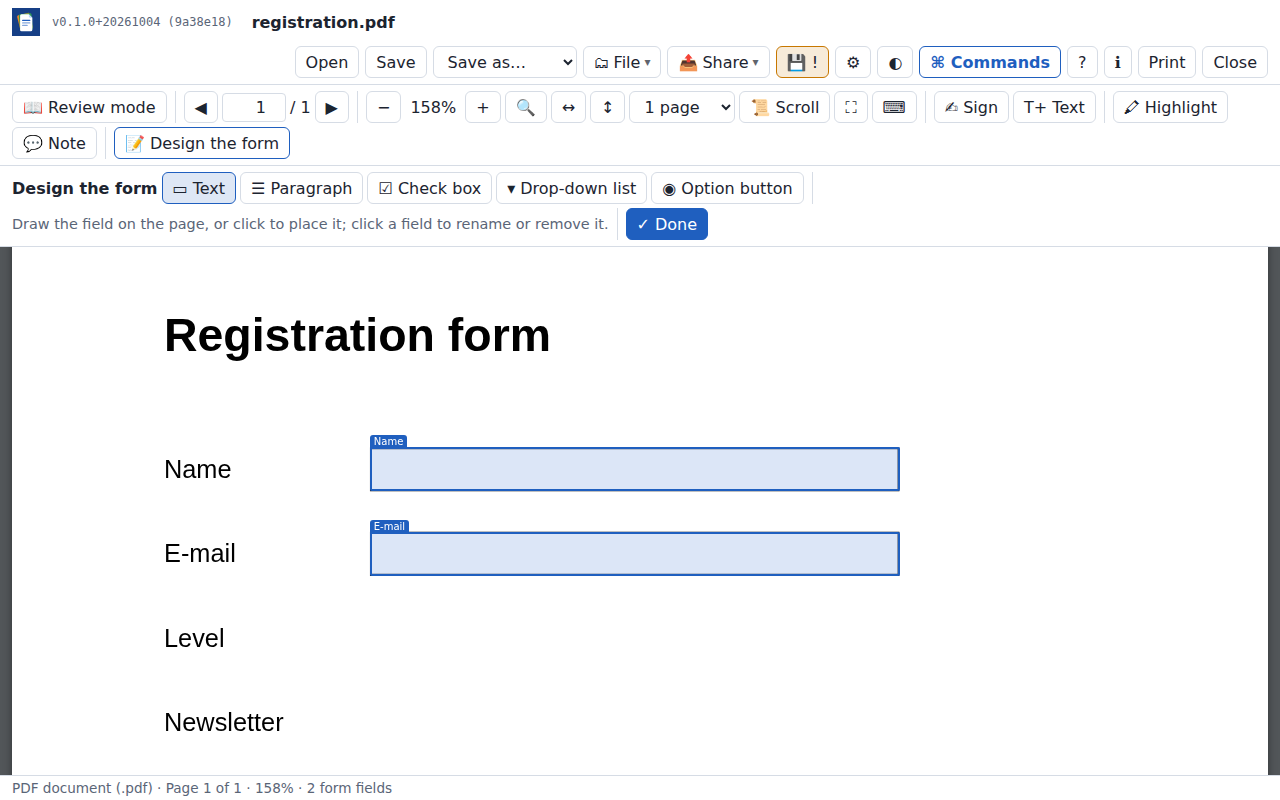
Write the document as usual (in the word processor or elsewhere) and save it as PDF — or open any PDF.
Open the PDF and click 📝 Design the form. A bar of field kinds appears:
Kind For ▭ Text a line of text: a name, a date, a number ☰ Paragraph several lines ☑ Check box yes or no ▾ Drop-down list one choice in a list (the choices are asked, one per line) ◉ Option button one choice among buttons: draw one button per answer, all with the same name, each with its value Choose a kind, then draw the field on the page with the pointer (or click: the field gets a usual size there). Its properties window opens (see below): at least give it a name — it will be the column of the answers.
Click a field to change its properties, rename or remove it — those that were already in the PDF too.
Click ✓ Done, then Save: the fields become real AcroForm fields of the file.
Reopened here, the form can be filled (see PDF › Filling forms).
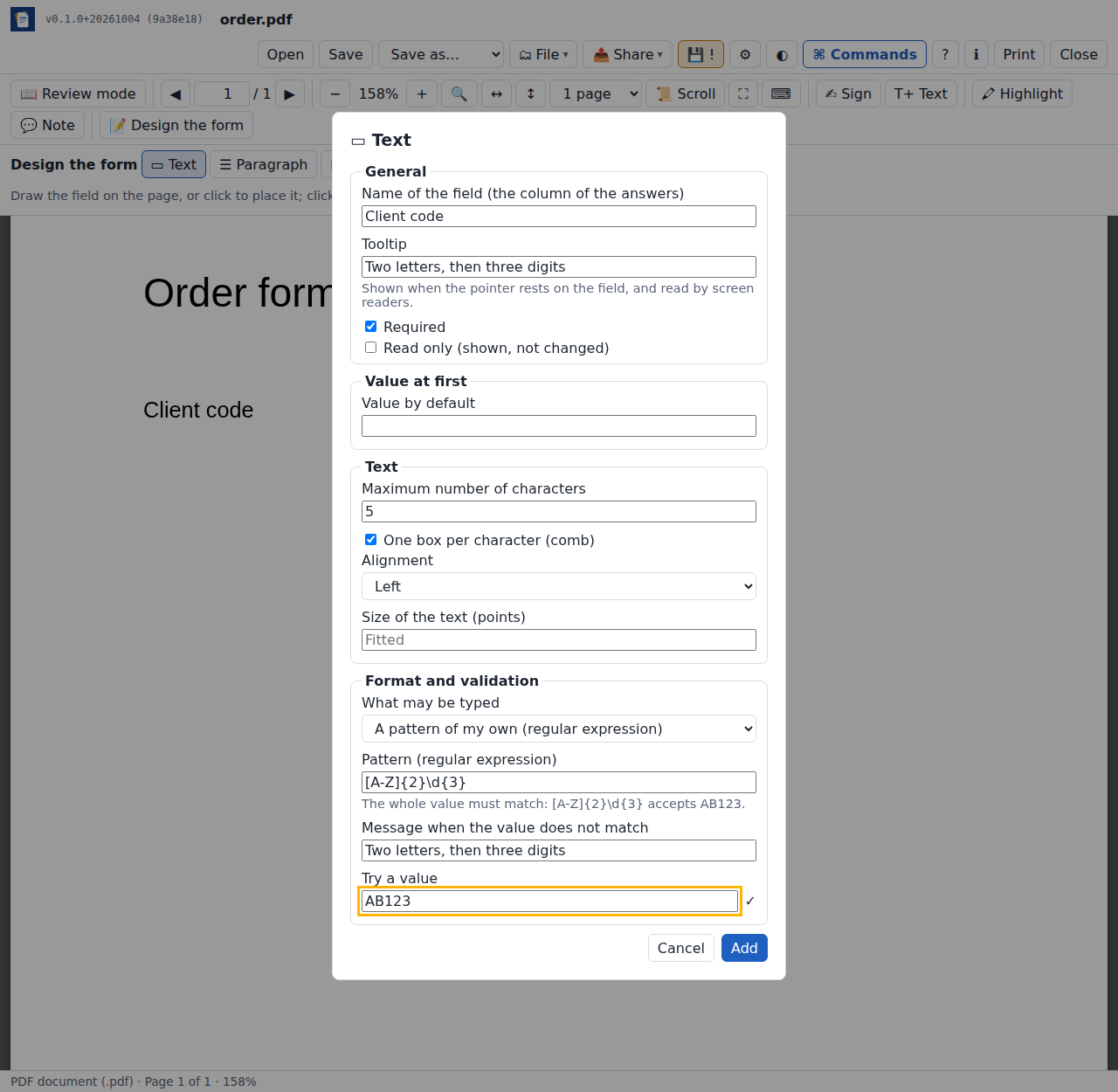
The properties of a field
| Section | Properties |
|---|---|
| General | name, tooltip (shown when the pointer rests on the field, read by screen readers), required, read only |
| Choices | a drop-down list: its choices, whether another value can be typed, sorted; an option button: its value |
| Value at first | the value by default of a text or a list; a check box checked by default |
| Text | the maximum number of characters, one box per character (a comb, for codes and numbers written in boxes), the alignment, the size of the text |
| Format and validation | what may be typed: any text, a number (with its decimals), a whole number, a date (written as dd/mm/yyyy, yyyy-mm-dd…), an e-mail address, a phone number, or a pattern of your own — a regular expression the whole value must match, with the message shown when it does not ([A-Z]{2}\d{3}: two capitals, then three digits). Try a value checks it at once. |
They are written in the file as PDF forms say them — the maximum length, the flags, the tooltip, and the JavaScript actions of PDF readers (AFNumber_*, AFDate_*, and a validation for e-mail, phone and patterns) — so that Acrobat and most readers check the value too. Filled in Progressive Web Office, a value that does not suit the format is outlined in red, with the message in its tooltip; the maximum length is never exceeded.
Limits
A browser's own PDF viewer, or a simple reader, may ignore the JavaScript of forms: there, the format is not checked (the maximum length and the flags still apply). Checking a value is help to fill a form right, not a guarantee: anyone can change a PDF — check the answers you compile.
Form fields in a text document
A registration form, a questionnaire, an authorisation slip can stay a text document: put form fields where the answers go.
Place the cursor, then ☑ Form field (in the Insert group), or the right-click menu (long press on a phone) under Form fields, or the command palette:
Kind For ▭ Text a name, a date, a number, a sentence ☑ Check box yes or no ▾ Drop-down list one choice in a list (the choices are asked, one per line) Give the field a name — the column of its answers — and say whether it is required (marked with a red
*).The field is filled where it stands: type in it, tick it, choose. Its right-click menu changes its properties or removes it.
The fields and their answers are kept in every format:
| Format | Fields |
|---|---|
OpenDocument (.odt) | input fields (named by their description) and drop-down fields — filled in LibreOffice by a double click; a check box is a ☐ / ☒ drop-down |
Word (.docx) | content controls: plain text, check box, drop-down list — filled in Word, the tag being the name |
Markdown (.md) | bracketed spans, as in Pandoc: [Ada]{.input name="Name"}, [x]{.checkbox name="Photos"}, [Yes]{.choice name="Lunch" options="Yes|No"}, required after the name |
| HTML | real form controls (<input>, <select>) |
| LaTeX | printed as boxes (☐ ☒), the answers, or lines to write on |
Markdown is a good choice in a Git repository: a filled copy is a one-line change.
Compiling the answers
Send the form, get the filled copies back, then 📋 Compile form answers… (in the 🗂 File menu, or the command palette):
- with a folder open, choose the forms of the open folder — put the copies in a folder — or choose files: PDF forms and text documents with form fields (
.odt,.docx,.md) can be mixed; - the answers make a new spreadsheet, Answers: one row per file (its name first), one column per field, in the order the fields first appear. Ticked boxes are TRUE or FALSE, numbers are numbers (but a code such as
01234stays text), the choices of a multiple list are joined with;.
Save it as .xlsx, .ods or .csv, sort and filter it, chart it. Files that cannot be read (encrypted, damaged) are left out and counted.
Into a Grist database
Instead of a new spreadsheet, choose a table of a Grist document: pick the Grist document (an account is added the first time), then name the table.
- A new table is created: one column per field, typed — check boxes as Toggle (yes/no), numbers as Numeric, the rest as Text — and one record per file.
- An existing table is completed: fields it lacks become new columns, and the files already in it (same name in the first column) are not sent again — compile the folder again when new copies come back, only the new ones are added.
Limits
- A text document's form fields are not yet turned into PDF form fields when it is saved as PDF: design the PDF form on the saved PDF.
- Option buttons and multi-line zones exist in PDF forms only.
- XFA forms (an old Adobe format) can be viewed but not designed or filled.